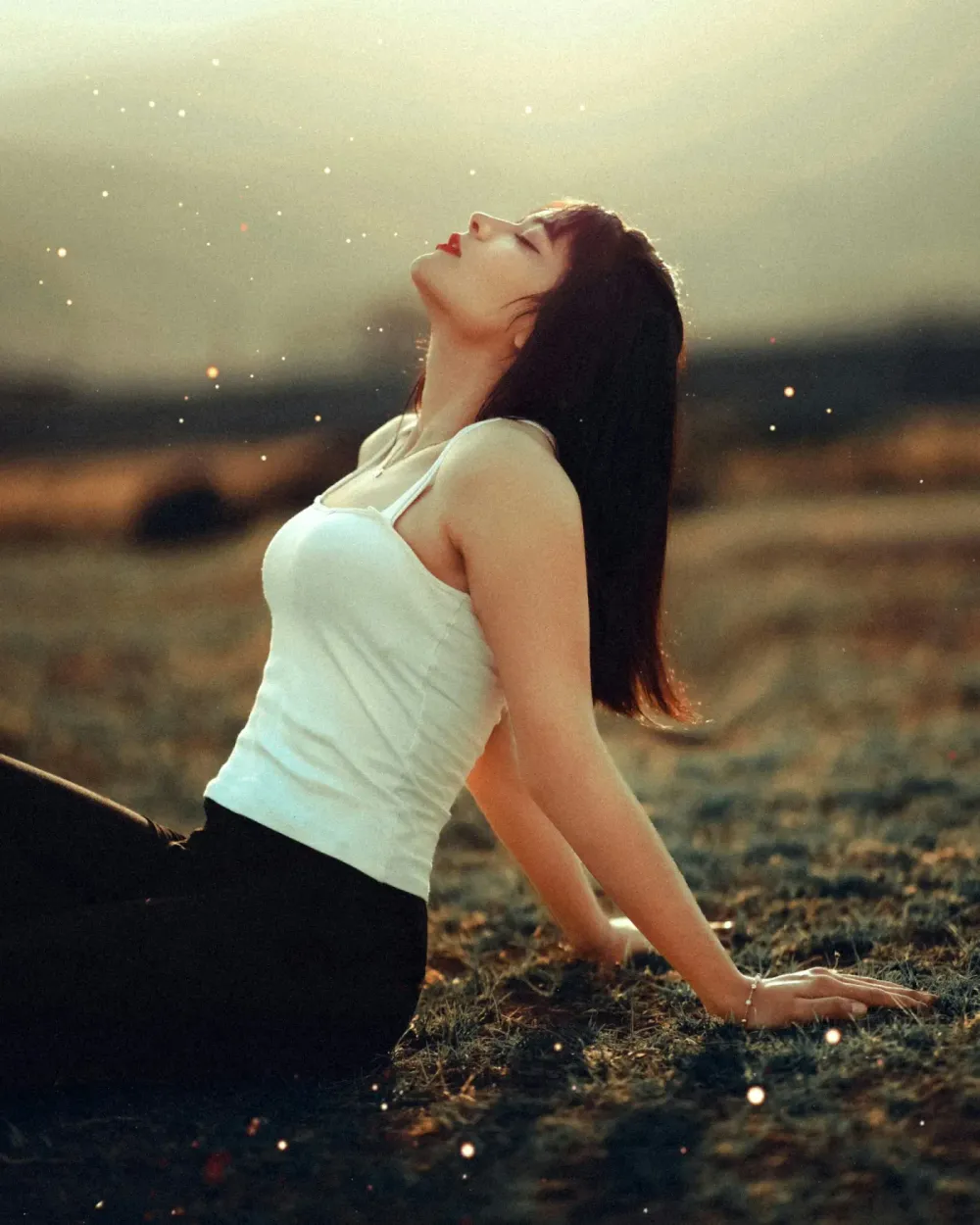
Most photo editors want to be a profession. PixMojo Studio wants to be a five-minute place. Open it, drop a phone photo, pick one of six looks, tweak one slider, save the file. Done. Closed. Nothing waiting for you to come back tomorrow.
Why a studio (and not just ten separate tools)
We've been shipping single-effect pages for a while — Polaroid, Film borders, Disposable, Date Stamp. Each one good at its job, none of them in conversation with each other. You'd edit a photo as a Polaroid, decide it wanted a film border instead, and start over.
The Studio is the same toolbox in one room. The photo loads once. You click between looks like flipping between contact sheets. Tune one slider and the preview updates immediately. Switch to Before/After to see what your photo was wearing before the look went on. Save when you're happy, or pick a different look and try that. Nothing re-uploads. Nothing reloads.
The six looks, in plain terms
1. Polaroid — the instant frame
The white border around the photo with the thick caption space at the bottom. Soft drop shadow underneath, so it looks like it was just peeled off the printer and placed on a desk. Rotation slider for the casual hand-tossed look (or set it to 0° for clean and quiet).
2. Film — Kodak Gold, Fuji Superia, or Ilford
The 35mm negative strip. Black borders on top and bottom with white sprocket holes. Frame info text in the canonical color: yellow-gold for Kodak, cool teal for Fuji Superia, soft grey for Ilford black-and-white. Pick the stock that matches your mood, not the stock the photo was actually shot on.
3. Border — clean, intentional, four colors
A thin solid border around the photo, no sprockets, no caption, no decoration. White for editorial, cream for warmth, ink for moody, vermilion if you want the photo to shout. The simplest tool in the Studio and the one that quietly turns an Instagram photo into something that looks like a magazine inside-spread.
4. Disposable — the Huji warmth
The whole photo gets a warm yellow wash, an orange light leak from the top-right corner, a gentle vignette in the corners, and real scanned film grain. Warmth slider lets you go from "subtle sunset" all the way to "ate a roll in 1998." Built on the same grain engine that's in our standalone Disposable tool — same texture at 1080px preview and 4000px export.
5. Date Stamp — the orange digicam timestamp
That seven-segment orange date in the bottom-right corner of every photo your parents took between 1998 and 2006. The Studio defaults to today's date in YYYY MM DDformat. Edit the date field to whatever you want — your parents' wedding year, the day someone in the photo turned eighteen, a fake summer of 2003. The date's job is to date the mood, not the photo.
6. Portrait Mode — magazine-style focus
The blur trick that makes a flat phone photo feel like it came out of a portrait lens. Center stays sharp, background falls off into feathered blur. Adjustable blur slider goes from "barely-there" for editorial portraits to "heavy cinematic fall-off" for the wedding cover shot.
One slider, one button, one file
The Tune section in the left rail is intentionally short. Every look gets one or two parameters worth caring about. Polaroid gets rotation. Disposable gets warmth. Portrait gets blur strength. We chose the single parameter that changes the most about the look, and left the rest alone. You can fiddle with one slider, not twelve.
Hit Download. The file lands in your downloads folder, named the way an editor would name it: PixMojo.app-yourphoto-polaroid.png. No watermark in the corner, no "Made with" tag at the bottom. It's your photo with a look on it.
The thing we don't do
We don't upload your photo. Not to our server, not to any AI service, not to anywhere. Every render happens in the browser tab you're looking at. Close the tab and the photo is gone — from the page, from memory, from the universe (except for whatever you downloaded). The Studio doesn't have an account because the Studio doesn't need one.
What's coming next
The right rail currently shows three sections in preview mode — Recent, Suggested looks, Presets. They're intentionally greyed out for now. The plan:
- Recentwill save the last ten edits in your browser's local storage. Click an old thumb, reopen the look you used, change one thing, ship a different version.
- Suggested lookswill recommend three nearby looks based on whatever you currently have selected. Picked Polaroid? You'll see Soft Polaroid, Vintage Border, and Cream Frame.
- Presetswill let you save a specific combo (Polaroid + cream border + -3° rotation) under a name ("Sunday warm") and reapply it to any new photo in one tap.
None of these change the core loop. They make repeat use faster. They ship when they're ready, not when we hit a deadline.
Try it
Open the Studio. Drop a phone photo. Click Polaroid. Move the rotation slider until the photo looks like a person tossed it on a desk. Hit Download. You'll have a magazine-ready photo in less than thirty seconds, with no signup, no watermark, no email confirmation.
That's the whole pitch. PixMojo Studio: the smallest possible thing between a phone photo and a photo worth sharing.